

S3 Storage Integration
We're currently in beta for our S3 storage integration, some details may change
Configuration
The integration with all compatible S3 storage requires different steps depending on your S3 storage provider. We have tested with AWS, DigitalOcean and MinIO. If you would like to use a different provider, please reach out to us: integrations@hibridgit.com
Requirements
Each S3 Storage Integration on Bridgit requires the following information:
- Region (some providers don't require this)
- Endpoint (the TLD of the bucket)
- Access Key (A key with write permissions to your S3 bucket)
- Secret Key (A secret key, the companion key of the Access Key)
Providers
AWS
For AWS, here's where you can get the required information:
Endpoint and Region
AWS Endpoints (& regions) are available here - they are standard across the AWS platform. https://docs.aws.amazon.com/general/latest/gr/s3.html#s3_region
Access Key & Secret Key
- You'll need to create a new user inside AWS.
IAM > Users- When creating the user, either attach policies directly, or use an existing plan.
- The only policy required by Bridgit is
AmazonS3FullAccess, Bridgit needs to be able to read and write to your buckets - Review and create the user.
- View Your New User
- Create an Access Key (please note that there is a limit to 2 Access Keys, which is why we recommend a Bridgit User, see Step 1)
- When creating the key: "Use Case is Other"
- Copy your AWS keys (Access and Secret) for use in Bridgit
Bucket
You can create a bucket with any settings that you require, but you will have to update the Permissions below for Bridgit to access write to the bucket
Permissions
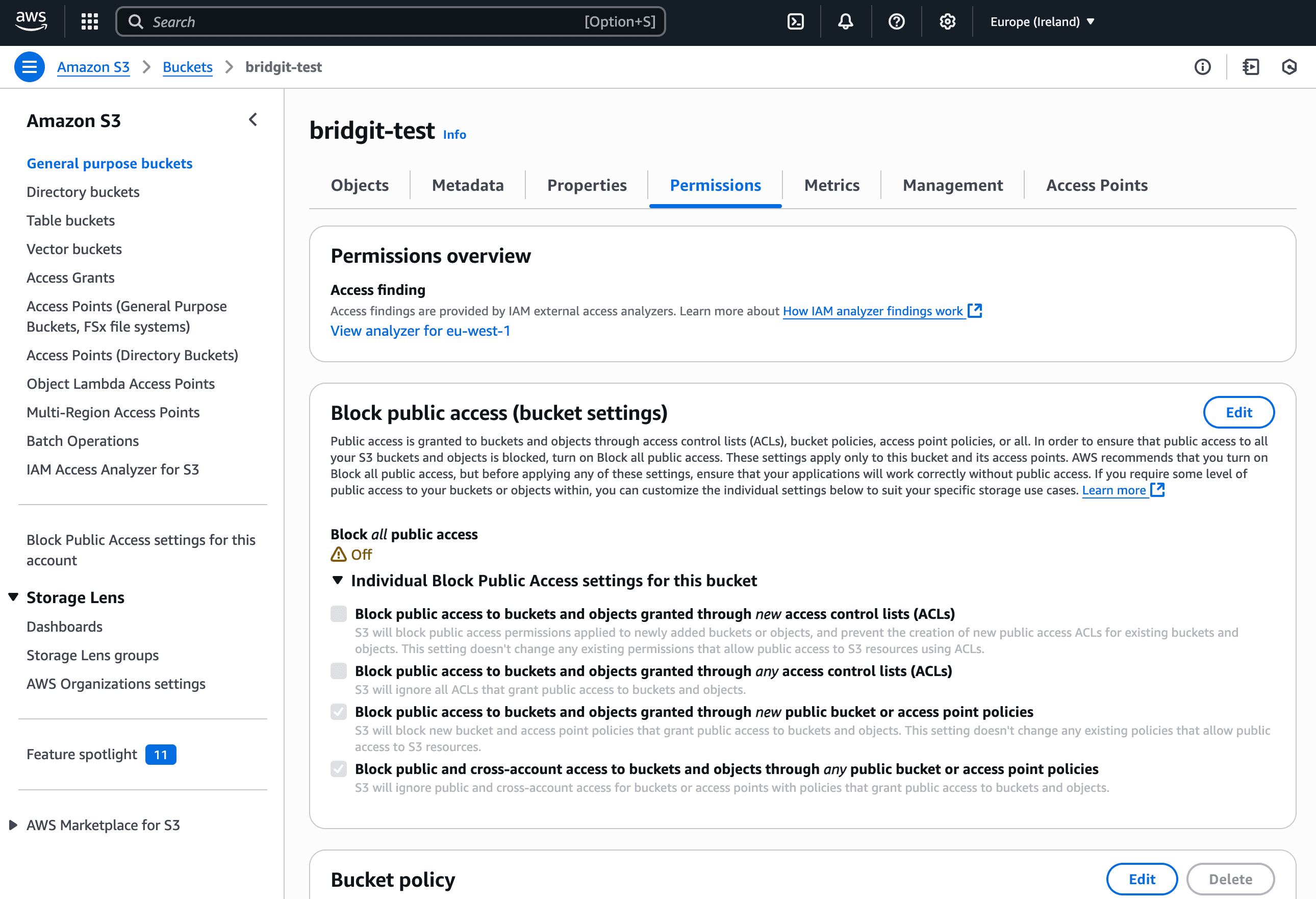
Once your bucket has been created, you'll need to ensure that your permissions align with what Bridgit requires. Amazon S3 > Buckets > Your Bucket
- Head to permissions
- Edit the Object Ownership
- Change the settings to: ACLs Enabled
- Change the Object Ownership to: Object Writer
- Edit the "Block Public Access"
- Remove the block:
Block public access to buckets and objects granted through new access control lists (ACLs) - Remove the block:
Block public access to buckets and objects granted through any access control lists (ACLs) - Save
- Remove the block:
You can now head back to the Bridgit app to create the Integration.
If you have any issues, please reach out to us at integrations@hibridgit.com
DigitalOcean
Digital Ocean refers to their S3 Compatible Storage as "Spaces Object Storage"
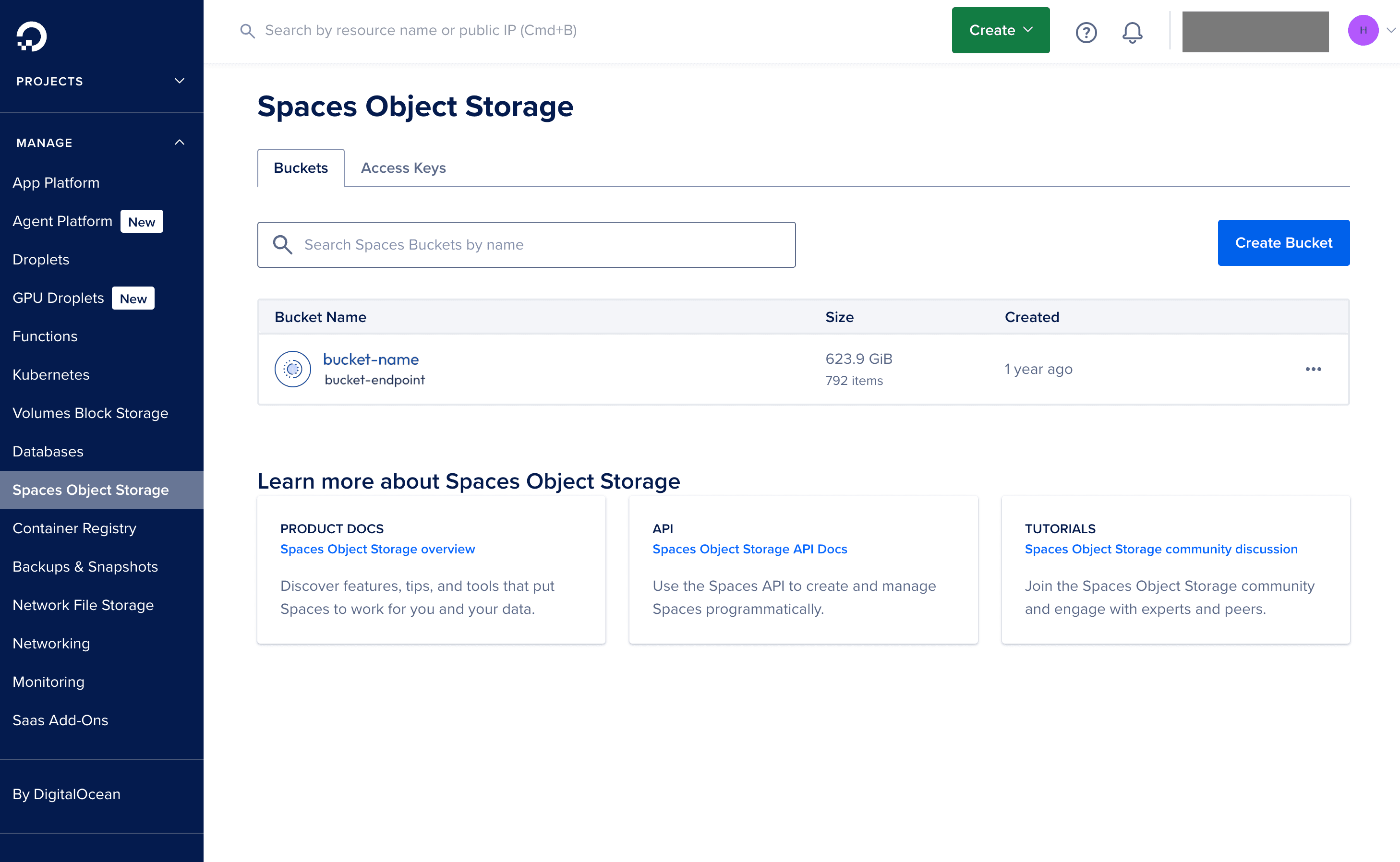
Endpoint and Region
The endpoint is listed on the DigitalOcean dashboard as the "Origin Endpoint" when you create the Bucket.
DigitalOcean doesn't require the region - you can leave this black depending on the storage
Access Key & Secret Key
On the DigitalOcean dashboard, you can create a new Access Key (and companion Secret Key), please note that Bridgit requires "Read/Write/Delete" permissions on the bucket to be able to peform all Bridge actions.
Permissions
Permissions are generated on the Access Key and Secret Key, please see above.